အမ်ိဳးအစားအလိုက္ၾကည့္႐ႈရန္

Showing posts with label Registry. Show all posts

Tuesday, July 12, 2016

Windows Script Host access is disabled on this machine Error ေျဖရွင္းနည္း

Window Activation, Crack, Office Activation ေတြလုပ္တဲ့အခါ 

"Windows Script Host access is disabled on this machine, Contact your administrator for details." 

ဆိုၿပီး Windows Script Host Error တက္ရင္ အလြယ္တစ္ကူ Regedit မွာ ေျဖရွင္းႏိုင္ပါတယ္။

Windows Script Host access is disabled on this machine

Enable, disable Windows Script Host

Enable ျပန္လုပ္ဖို႔ရာ Start -->Run မွာ regedit.msc ဟု႐ိုက္ထည့္ပါ။HKEY_LOCAL_MACHINE\Software\Microsoft\Windows Script Host\Settings
အထိအဆင့္ဆင့္ဖြင့္ပါ။
enable disable Windows Script Host
ညာဘက္ panel မွာ Enabled မွာ 0, ျဖစ္ေနလွ်င္ Double Click ႏွိပ္ၿပီး Value data: ကို 1, ထည့္ေပးပါ။

  • 1 will enable Windows Script Host
  • 0 will disable Windows Script Host.

Monday, July 27, 2015

System Restore ကိုဘယ္လို Enable (သို႔) Disable လုပ္မလဲ

System Restore  လုပ္ဖို႔ႀကိဳးစားေနတဲ့အခ်ိန္မွာ  “System Restore is disabled by your system administrator”. လို႔ Message ေပၚလာတယ္ဆိုရင္ ဒါမွမဟုတ္ Computer --> Properties မွာ Restore Button မွာမွိန္ေနမယ္ဆိုရင္
1)  ‘Start’ ကိုႏွိပ္ပါ။  ‘Run’ ကိုေရြးပါ။  regedit.exe လို႔ ပံုမွာျပထားတဲ့အတိုင္းရိုက္ထည့္ပါ။

2)  HKEY_LOCAL_MACHINE \ Software \ Policies \ Microsoft \ Windows NT \
    SystemRestore ထိအဆင့္ဆင့္ဖြင့္ပါ။

3) Delete the value DisableConfig and DisableSR.

That’s it! Restart and you will find the System Restore has been enabled.

Monday, June 16, 2014

Printer ကို set printer as default ထားေသာအခါ "Operation could not be completed (error 0×00000709)"

PROBLEM:
You will get the following error when you are trying to set your printer as default

“Operation could not be completed (error 0×00000709) Double check the printer name and make sure that the printer is connected to the network”

SOLUTION:
  • Open Registry editor by typing REGEDIT in the RUN Prompt
image
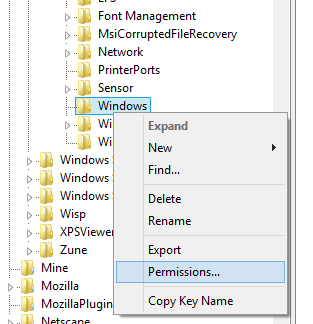
  • Traverse to HKEY_CURRENT_USER\Software\Microsoft\Windows NT\CurrentVersion\Windows
  • Right Click the Windows key and click Permissions…
image
  • Select Allow on Full Control permission and click OK
image
  • Close the Registry Editor and restart the machine.

Saturday, June 7, 2014

You receive a "The User Profile Service failed the logon” error message

To fix the user account profile, follow these steps: 

Press F8 key at computer boot up. Choose Safe Mode.

Click Start, type regedit in the Search box, and then press ENTER.
  1. In Registry Editor, locate and then click the following registry subkey:
    HKEY_LOCAL_MACHINE\SOFTWARE\Microsoft\Windows NT\CurrentVersion\ProfileList
  2. In the navigation pane, locate the folder that begins with S-1-5 (SID key) followed by a long number.
  3. Click each S-1-5 folder, locate the ProfileImagePath entry in the details pane, and then double-click to make sure that this is the user account profile that has the error.
    2705065

    • If you have two folders starting with S-1-5 followed by some long numbers and one of them ended with .bak, you have to rename the .bak folder. To do this, follow these steps:
      1. Right-click the folder without .bak, and then click Rename. Type .ba, and then press ENTER.
        2493038
      2. Right-click the folder that is named .bak, and then click Rename. Remove .bak at the end of the folder name, and then press ENTER.
        2493039
      3. Right-click the folder that is named .ba, and then click Rename. Change the .ba to .bak at the end of the folder name, and then press ENTER.
        2493040
    • If you have only one folder starting with S-1-5 that is followed by long numbers and ends with .bak. Right-click the folder, and then click Rename. Remove .bak at the end of the folder name, and then press ENTER.
  4. Click the folder without .bak in the details pane, double-click RefCount, type 0, and then click OK.
    2493045
  5. Click the folder without .bak, in the details pane, double-click State, type 0, and then click OK.
    2493046
  6. Close Registry Editor.
  7. Restart the computer.
  8. Log on again with your account.

Thursday, May 8, 2014

This installation is forbidden by system policy. Contact your system administrator

After much searching I found this solution that worked
start > run > regedit
Browse the registry to HKLM\Software\Policies\Microsoft\Windows\Installer
Create: DisableMSI       Type: REG_DWORD  value = 0  
 (0 should allow you to install it was originally 1) 
(In my case the value had been set to 2 so I changed it to 0)

I hope this helps someone too..

Friday, January 24, 2014

Windows Desktop Right-Click Menu မွာ Application List ထည့္နည္း

image
၁) regedit.exe ကို Run မွာရုက္ထည့္ပါ။ ၿပီးလွ်င္ ေအာက္မွာ ျပထားသည့္ Key အထိအဆင့္ဆင့္ဖြင့္ပါ။
HKEY_CLASSES_ROOT\Directory\Background\shell


Shell ေပၚတြင္ R-Click ႏွိပ္ပါ။ New --> Key ကိုေရြးပါ။ R-Click --> Menu  မွာထည့္မည့္ နာမည္ရိုက္ထည့္ပါ။ Eg. Notepad

Notepad ေပၚမွာ R-Click ႏွိပ္ပါ။ New --> Key ကိုႏွိပ္ပါ။ command လို႔ရုိက္ထည့္ပါ။


Command ကိုေရြးပါ။ ညာဘက္ျခမ္း တြင္ (Default) REG_SZ ကို ႏွစ္ခ်က္ႏွိပ္ပါ။ Program Path ကိုထည့္ပါ။ Program Path သိရန္ ထည့္လိုတဲ့ Program ကို Shit ႏွိပ္ၿပီး R-Click ႏွိပ္ပါ။ ၿပီးလွ်င္ Copy As Path ကိုေရြးပါ။ ၿပီးလွ်င္ Program Path ထည့္မည့္ေနရာတြင္ Paste လုပ္ပါ။

Now click on “command” on the left side, and then double-click on the (Default) key in the right side to edit the string value.


Desktop ေပၚမွာ Right Click ႏွိပ္လွ်င္ Notepad ကိုေတြ႔ရမည္။ တစ္ျခား Program မ်ားလဲ Program Path ပဲကြာပါတယ္။


Monday, October 21, 2013

Software တင္တဲ့အခါ Default Location ကိုေျပာင္းထားခ်င္ရင္.........

Drive C: မွာေနရာျပည့္ေနတဲ့သူေတြအတြက္ Program တင္တဲ့အခါ တစ္ခါတည္း တစ္ျခား Drive သို႔ေနရာေျပာင္းထားလိုတဲ့သူေတြအတြက္ Default Program Path ေျပာင္းနည္းေလးပါ။
1. Run မွာ “regedit” လို႔ရိုက္ထည့္ပါ။
2. ေအာက္မွာျပထားတဲ့ ေနရာအထိအဆင့္ဆင့္ဖြင့္ပါ။

HKEY_LOCAL_MACHINE\SOFTWARE\Microsoft\Windows\CurrentVersion

3. value named “ProgramFilesDir” ကိုရွာပါ။ Right Click ႏွိပ္ၿပီး Modify ကိုႏွိပ္ပါ။ “C:\Program Files” ကိုျဖတ္၍ ေျပာင္းလိုတဲ့ path ကိုရိုက္ထည့္ပါ။ (Eg, D:\Programs\ )။ ၿပီးရင္ Ok ႏွိပ္ပါ။

4. Registry ကိုပိတ္ၿပီး ကြန္ပ်ဴတာကို Restart ျပန္လုပ္ပါ။ ၿပီးရင္ Software တင္ၾကည့္ပါ။ မိမိေျပာင္းထားတဲ့ Path ကို Program ေတြ Path ေရြးၿပီးသားျဖစ္ေနပါလိမ့္မယ္။

Monday, June 24, 2013

ကြန္ပ်ဴတာကို Shutdown လုပ္လို႔ Restart ျပန္ျပန္ျဖစ္ေနရင္

1) Registry ကို၀င္ဖို႔ START-->Run မွာ "regedit" လို႔႐ိုက္ထည့္ပါ။

2) HKEY_LOCAL_MACHINE\SOFTWARE\Microsoft\Windows NT\CurrentVersion\Winlogon အထိအဆင့္ဆင့္ဖြင့္ပါ။

3) "PowerdownAfterShutdown" ကိုႏွစ္ခ်က္ႏွိပ္ပါ။


တန္ဖို႔းကို "0" ျဖစ္ေနလွ်င္ "1" ေျပာင္းပါ
"1" ျဖစ္ေနလွ်င္ "0" ေျပာင္းပါ

4) Ok ႏွိပ္ပါ။

စက္ကို Restart လုပ္ပါ။ ၿပီးရင္ ျပန္ပိတ္ၾကည့္ပါ။ ဒါေလးလုပ္ၿပီးရင္ေတာ့ အဆင္ေျပမယ္လို႔ထင္ပါတယ္။
 အဆင္မေျပရင္လဲ မူလတန္ဖို႔ကိုျပန္ေျပာင္းေပးလိုက္ပါ။ :)

Saturday, June 8, 2013

USB Storage ေတြကို အသံုးျပဳလုိ႔မရေအာင္ ပိတ္ခ်င္တယ္ဆိုရင္..............

ကိုယ္ကြန္ပ်ဴတာမွာ Usb Stick ေတြထားသံုးတာ မႀကိဳက္ဘူးဆိုရင္ေတာ့ ဒီနည္းလမ္းေလးနဲ႔ ပိတ္ထားလို႔ရပါတယ္.........

ပိ္တ္ဖို႔ဆိုရင္ေတာ့ 
Registry ကို ဖြင့္ပါ။ (Start-->Run-->Type "regedit"-->Press "Enter")
Registry Editor ေရာက္လွ်င္ေအာက္မွာေပးထားတဲ့အတိုင္း အဆင့္ဆင့္ဖြင့္ပါ။

 [HKEY_LOCAL_MACHINE\SYSTEM\CurrentControlSet\Services\USBSTOR]

USBSTOR ေတြ႔ရင္ေတာ့ ညာဘက္ Right Panel မွာ Start ကို ႏွစ္ခ်က္ႏိွပ္ၿပီး 4 ရိုက္ထည့္ေပးပါ။


ျပန္ဖြင့္မယ္ဆိုရင္ေတာ့ 
တန္ဖိုးကို 3 ျပန္ေပးလိုက္ပါ။

Group Policy ကို Disable ေပးမယ္.....

Group Policy ကို Disable ေပးဖို႔ရာ 
1) အရင္ဆံုး Command Prompt ကိုဖြင့္ပါ။ (Start-->Run--> Type "cmd"-->Enter ႏွိပ္ပါ။)
ေအာက္မွာေပးထားတဲ့ Command ကိုရိုက္ထည့္ပါ။
 
REG add "HKCU\Software\Policies\Microsoft\MMC\{8FC0B734-A0E1-11D1-A7D3-0000F87571E3}" /v Restrict_Run /t REG_DWORD /d 1 /f

2) Group Policy ကို ျပန္ဖြင္ရန္အတြက္ ေအာက္က Command ကိုျပန္ရိုက္ထည့္ပါ။
REG add "HKCU\Software\Policies\Microsoft\MMC\{8FC0B734-A0E1-11D1-A7D3-0000F87571E3}" /v Restrict_Run /t REG_DWORD /d 0 /f


ၿပီးရင္ေတာ့ Command Prompt ကိုျပန္ပိတ္လိုက္ပါ။